To add a Bible widget, install VerseNest, open it once, and then add VerseNest from your iPhone’s widget gallery. You can use a Home Screen widget or a Lock Screen widget. The app requires iOS 17 or later; the exact system button names may vary with your iOS version.
Before you begin: a free VerseNest widget opens the app for reading. Displaying Scripture directly on the widget requires Premium. The Basic design is available for free; additional themes and personalized Scripture sources are Premium features.
Prepare VerseNest
- Download VerseNest from the App Store.
- Open the app and complete its initial setup. Choose English or Spanish.
- Open the app’s Widgets section and review the available designs. Save or apply your settings using the controls shown in the app before adding the system widget.
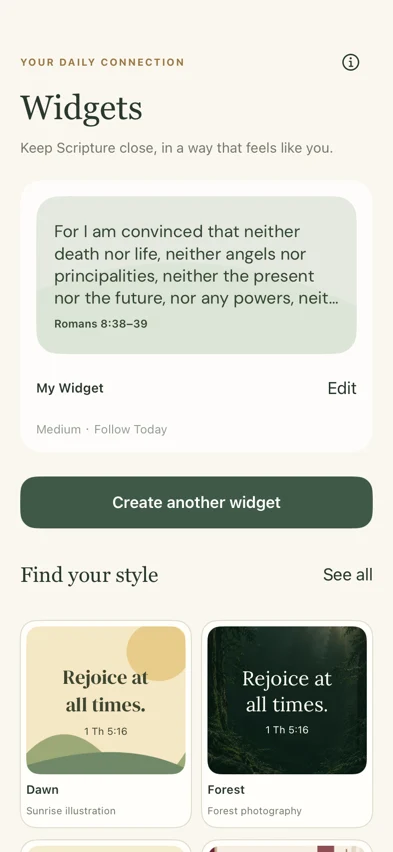
This image shows widget configuration inside VerseNest. Adding the widget to your screen is a separate step in iOS.
Add a Home Screen widget
See the Home Screen guide inside VerseNest
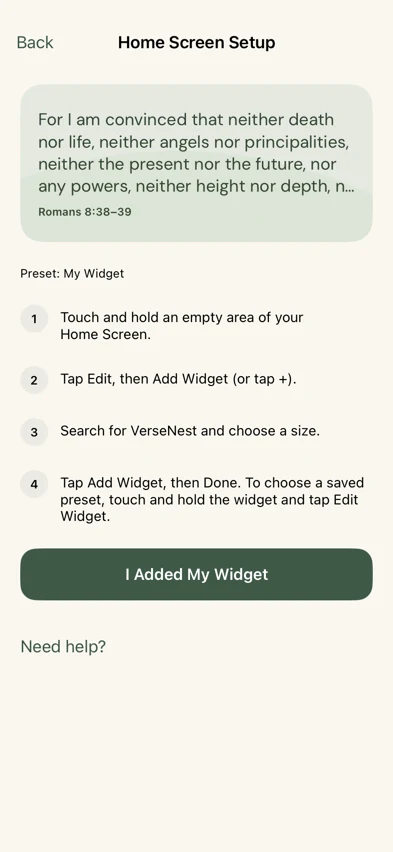
This is the app’s setup guide. The steps below take place on your iPhone Home Screen.
- On your iPhone Home Screen, touch and hold an empty space until editing begins.
- Open the widget gallery using Edit → Add Widget. On some versions, use the + button.
- Search for VerseNest and select it. Swipe through the available sizes.
- Choose Add Widget, move it to the position you prefer, and finish editing.
- If the widget offers a configuration option, touch and hold it and choose Edit Widget to select the intended saved preset.
Leave enough space for the selected size. If you place the widget in a stack, you may need to swipe the stack to see it.
Add a Lock Screen widget
See the Lock Screen guide inside VerseNest
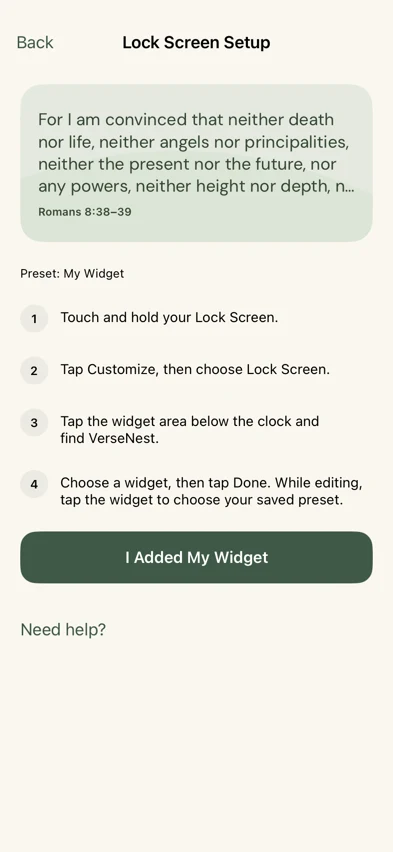
This is the in-app guide, not a screenshot of a system Lock Screen.
- Unlock your iPhone and remain on the Lock Screen.
- Touch and hold the screen, choose Customize, and select the Lock Screen if prompted.
- Tap the widget area beneath the clock, find VerseNest, and choose an available widget.
- If the area is full, remove another widget to make room. Finish customizing to save the layout.
Home Screen and Lock Screen widgets have different space limits. A longer passage may be easier to read in the app. A Lock Screen widget is also different from a wallpaper image; it is added through the widget area rather than saved as a photo.
Check the result
Your widget should now appear on the screen you chose. Tap it to confirm that VerseNest opens. With the free version, the widget is an invitation to open the app; a locked prompt is expected rather than a missing passage. Premium is required for Scripture on the widget itself.
If VerseNest does not appear
First confirm the app is installed and has been opened at least once. Close the widget gallery and try again. If it is still missing, check that you have a compatible iOS version and the current app version; restarting the phone can help refresh the system gallery.
If a widget opens the app instead of displaying a passage, check your Premium status. If a selected design does not appear, review which preset the installed widget uses. Avoid deleting the app as your first troubleshooting step, because local favorites and settings may be lost.
Changing a design or reading source
Make your changes in VerseNest and apply the configuration. For widgets that refer to a saved preset, check that the installed widget is assigned to that preset. iOS controls when widgets refresh; a configuration change or a request to refresh is not a promise of an immediate system update.
For continued help, contact VerseNest support with your iOS version, app version and a description of what appears. Do not include private account or payment information.
Keep the reading connected to prayer
A widget can remind you to pause, while the app gives the passage more room. Open VerseNest for daily Scripture and its related prayer, or read our guide to praying Scripture here.
System setup reference: Apple’s guide to adding and editing iPhone widgets. VerseNest-specific feature descriptions were checked against the app project and App Store information on October 30, 2026.
Keep the Word close, every day.
Choose a Bible widget that feels like you. Premium brings Scripture to your screen with more themes and personalized sources.
Free to download · In-app purchases
Prayers and reflections are original website content, not Bible quotations or a guarantee of the app’s reading for today. Scripture quotations identify the translation and link to the source.
Sources, editorial approach & corrections ↗